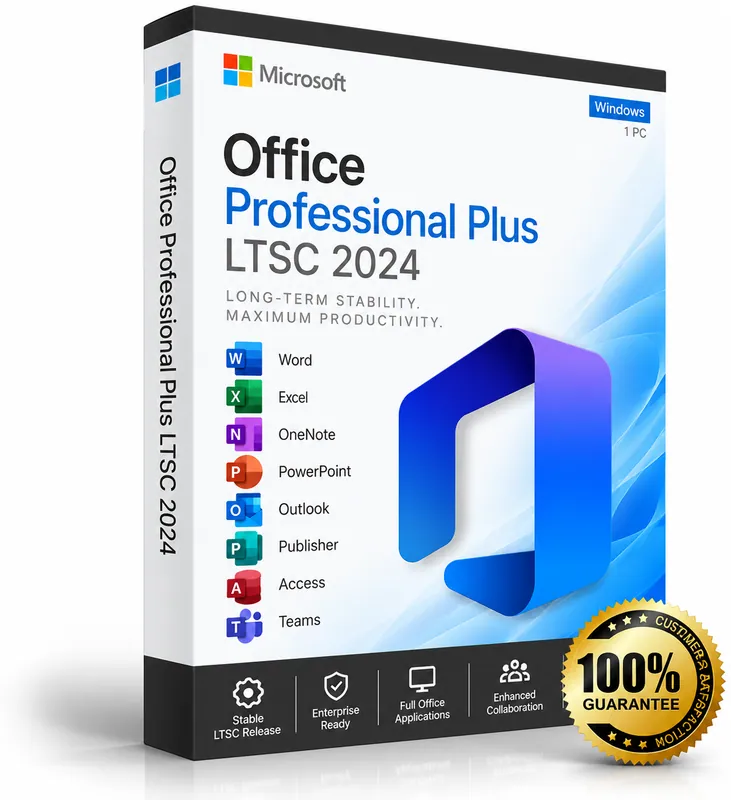
Install Microsoft Office 2024 LTSC Pro Plus – step-by-step guide
Updated 2026-11-04
This guide installs Office LTSC Professional Plus 2024 (Word, Excel, PowerPoint, Outlook, OneNote, Access and more) on a Windows PC and activates it with your product key. It takes about 15–30 minutes, depending on your internet speed.
Before you start
- Uninstall any older Office version and restart your PC. If you're not sure how, see keymart.net/help/remove-old-microsoft-office
- Prepare the Office Deployment Tool and configuration.xml in C:\ODT, as described in keymart.net/help/download-office-2024-ltsc
Step 1: open Command Prompt as administrator
Click Start, type cmd, right-click “Command Prompt” and choose “Run as administrator”. Click Yes when Windows asks.
Step 2: go to the ODT folder
cd C:\ODTStep 3: download and install Office
setup.exe /configure configuration.xmlThe Office installer window opens and downloads Office from Microsoft. Leave the Command Prompt open until the installer says “You're all set”.
Step 4: activate with your product key
- Open Word or Excel.
- When asked, enter or paste your 25-character product key and click “Activate Office”.
- If you aren't asked, go to File → Account → Change Product Key (see keymart.net/help/change-office-2024-product-key).
- File → Account should now show “Product Activated – Microsoft Office LTSC Professional Plus 2024”.
Alternative: activate from Command Prompt
In Command Prompt as administrator:
cd "C:\Program Files\Microsoft Office\Office16"
cscript ospp.vbs /inpkey:XXXXX-XXXXX-XXXXX-XXXXX-XXXXX
cscript ospp.vbs /act
Something went wrong?
- Office shows an older version, or the key is refused: clear the old licence files (keymart.net/help/remove-old-microsoft-office) and try again.
- “Couldn't install”: make sure you ran Command Prompt as administrator and that configuration.xml is saved as .xml, not .txt.
- Anything else: reply to your order email with a screenshot – we'll help you.