How to change your Office 2024 product key without reinstalling
Updated 2026-11-04
Need to replace your Office key, for example because the old one expired, was used too many times, or you bought a new licence? You can change it in a minute from any Office app, without reinstalling.
Applies to: Office 2024 LTSC Professional Plus, Office 2024 LTSC Standard, Office Home 2024 and Office Home & Business 2024.
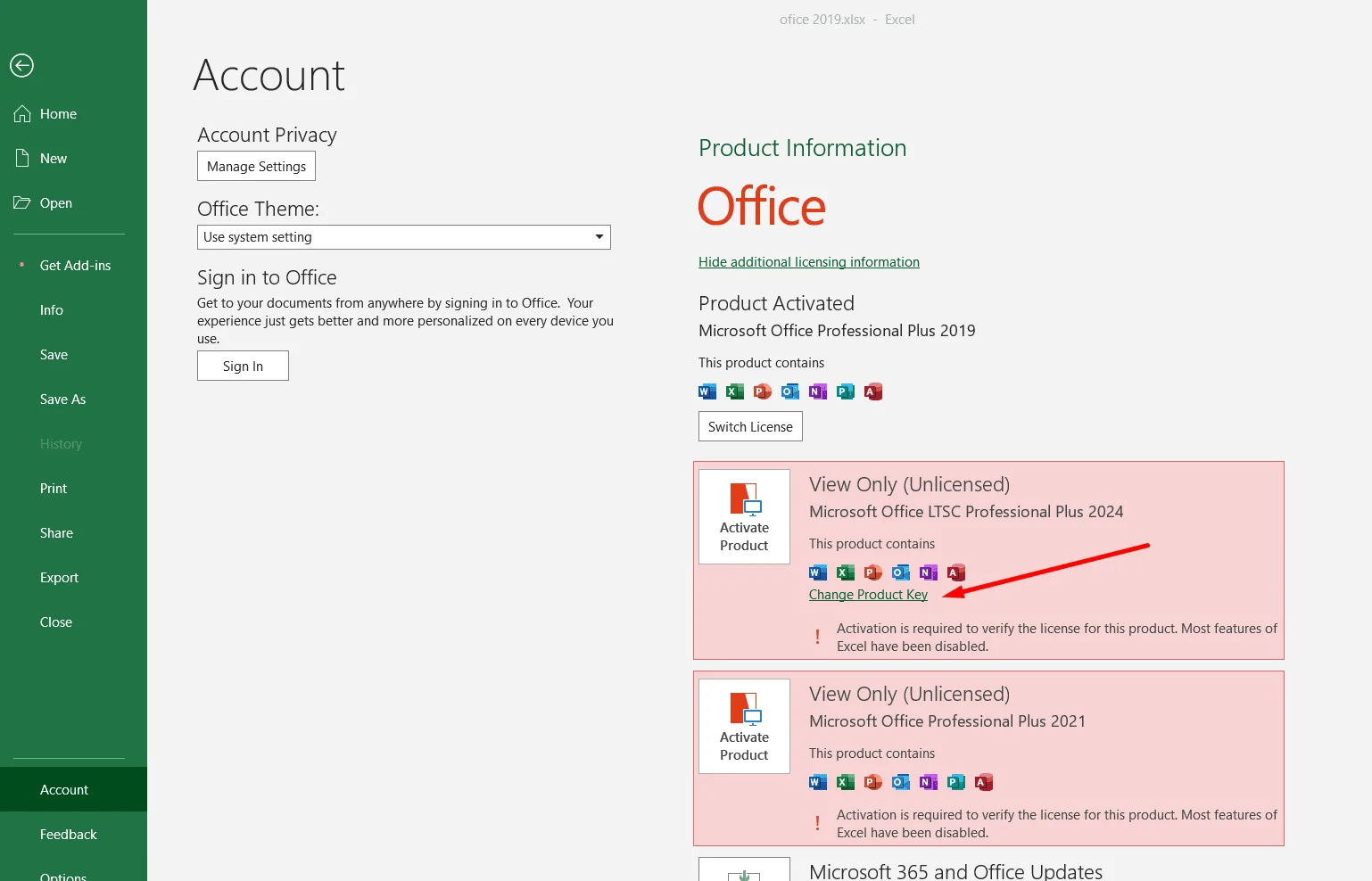
Step 1: open Account and click “Change Product Key”
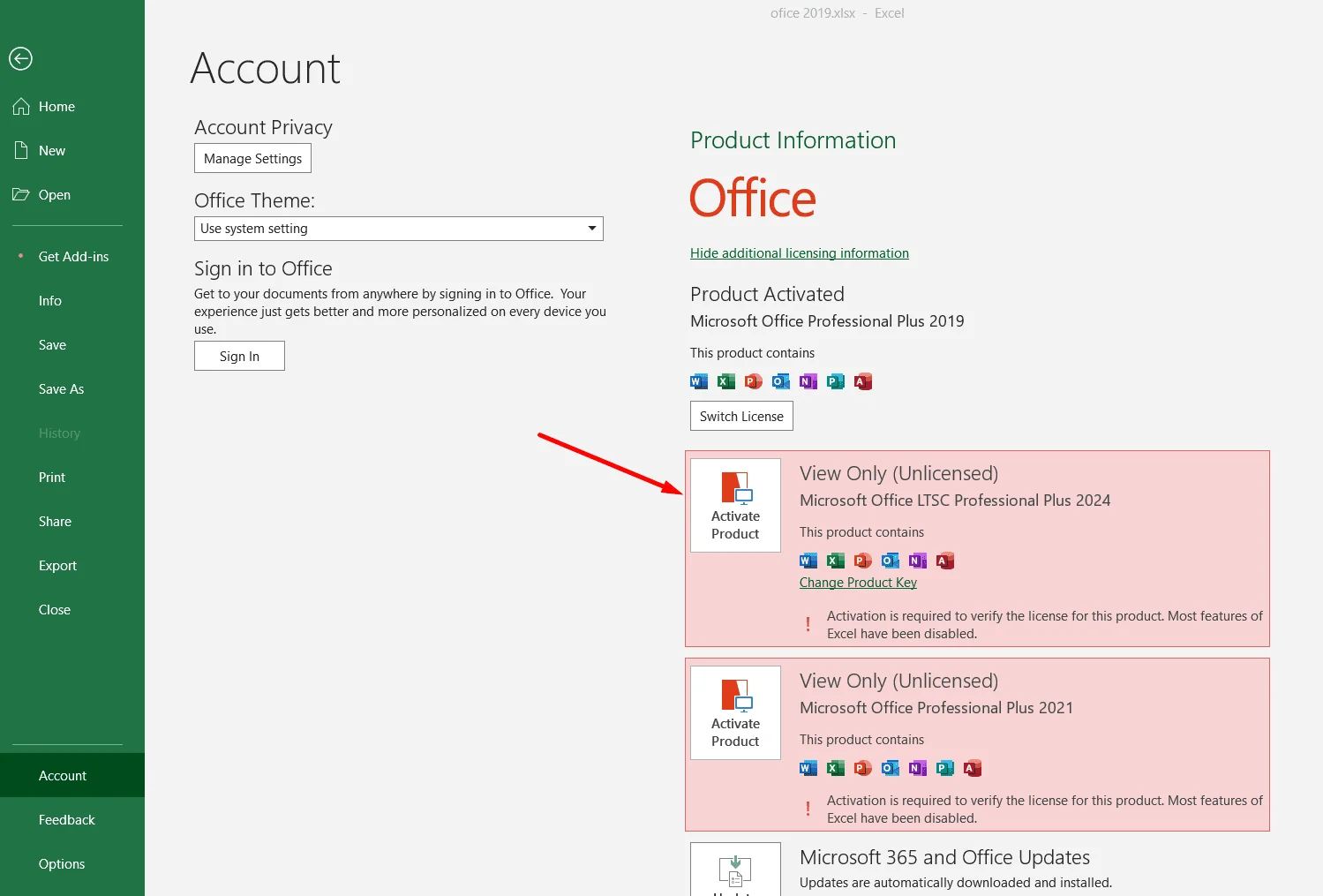
Open Word or Excel. Click File (top left), then Account. Under the Office product, click “Change Product Key”. If you don't see it, click Update Options → Update Now first, then come back.
Step 2: enter your new key
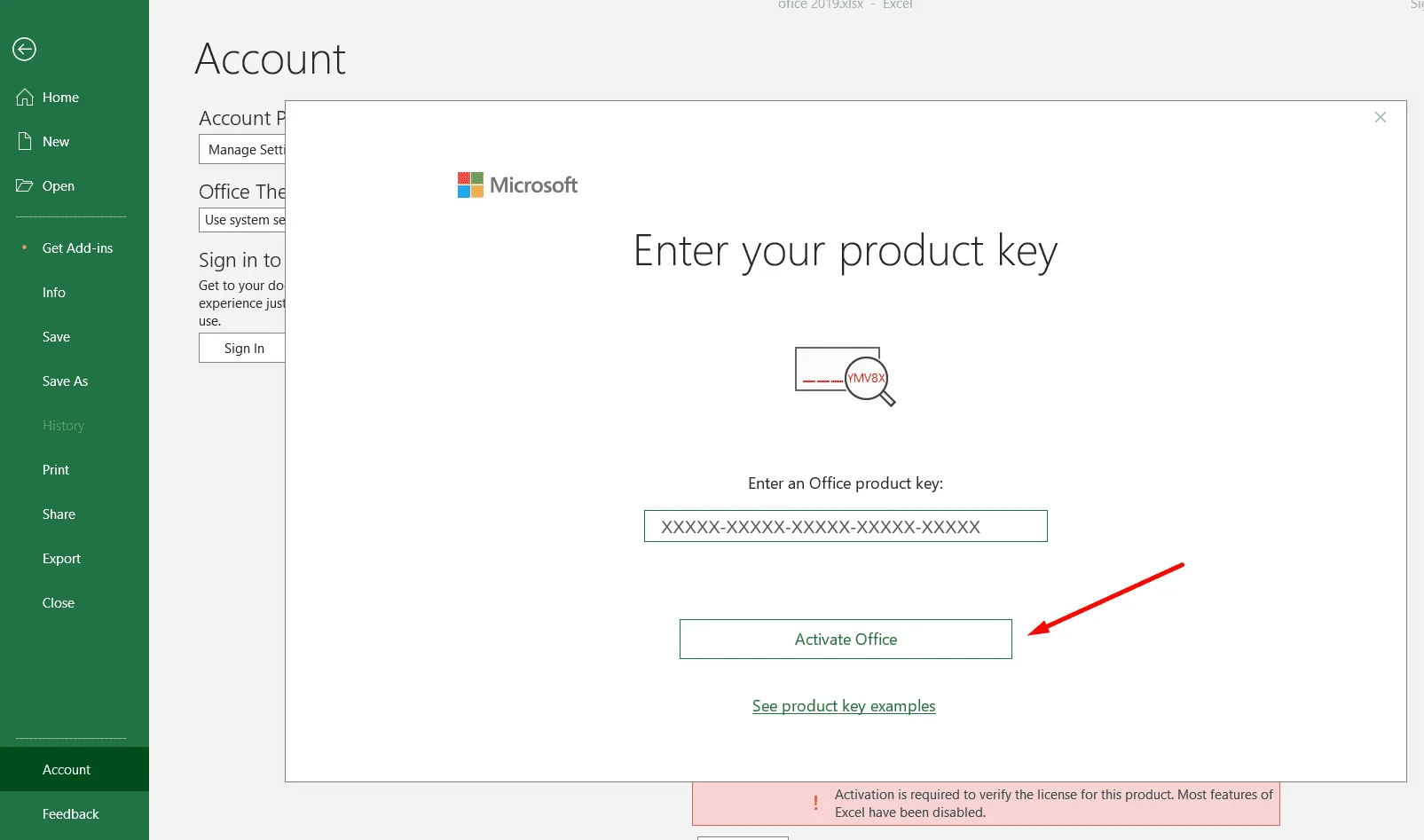
Type or paste your 25-character product key (choose “Enter product key instead” if you're offered a sign-in) and click “Activate Office”.
Step 3: activate
Back on the Account page, click “Activate Product” on the Office 2024 entry if it still asks for activation.
Done
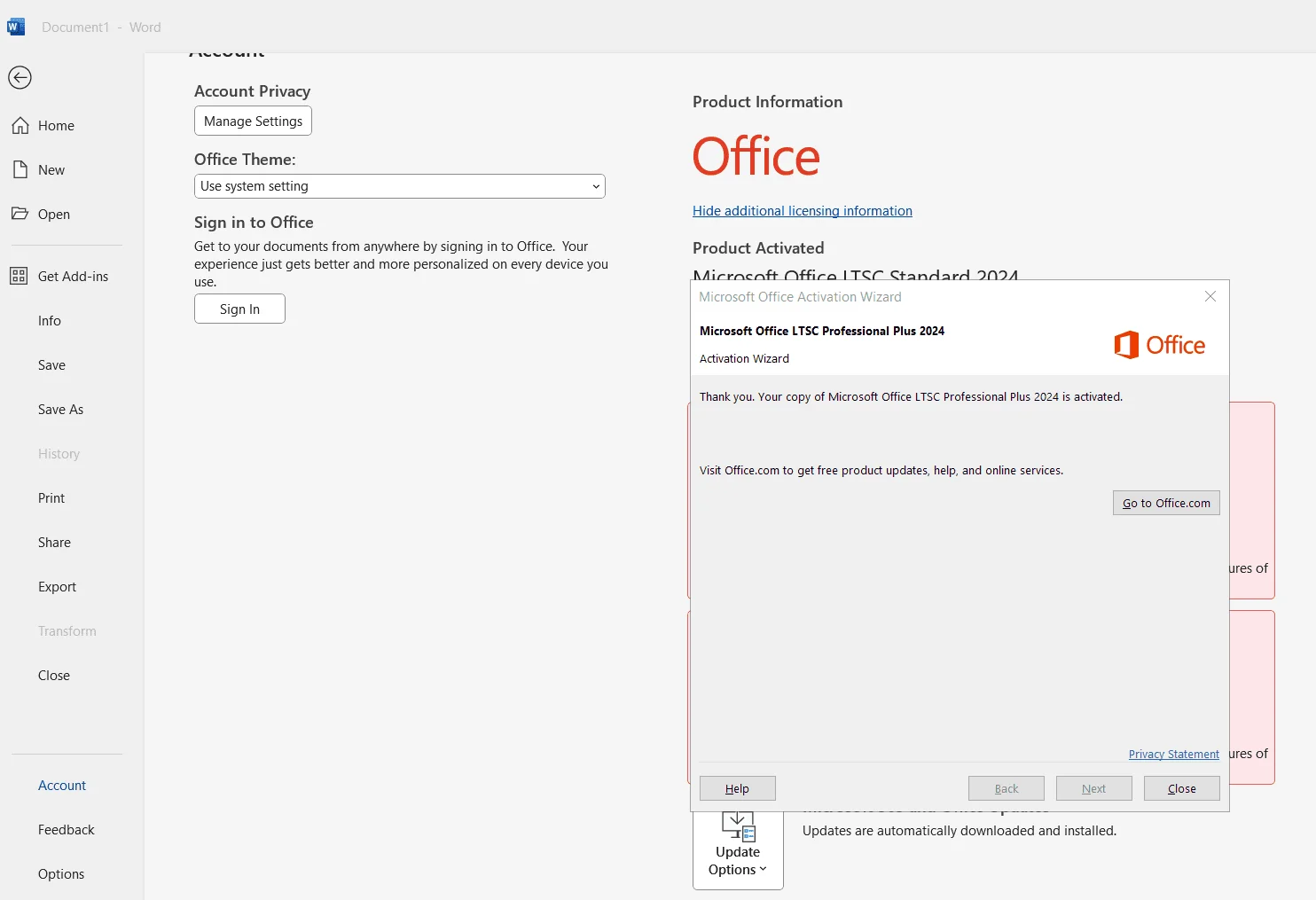
The Activation Wizard confirms that your copy of Office 2024 is activated, and File → Account shows “Product Activated”.
If the key can't be activated, contact us with a screenshot of the message. We'll check it and send a replacement if the key is faulty.